


We recently added Bulgarian to our Matimar website, which is built using WordPress. To keep the cost down we chose to use the open source Polylang plugin to do this.
However, it turned out to be not entirely straightforward to add a Polylang language switcher to our WordPress site so I have written some brief notes on how this can be done.
Install Polylang plugins
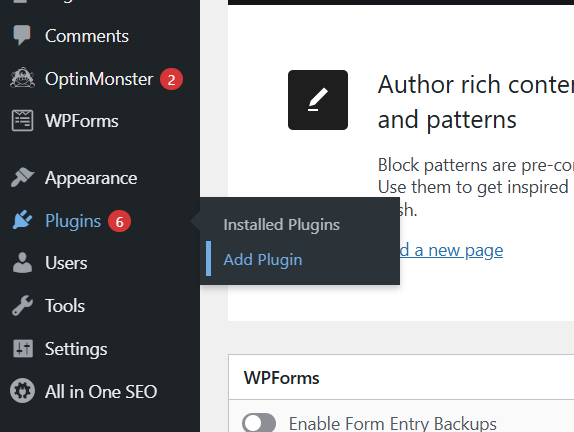
From the WordPress dashboard, select Plugins->Add Plugin.
Type Polylang into the search box and press enter.

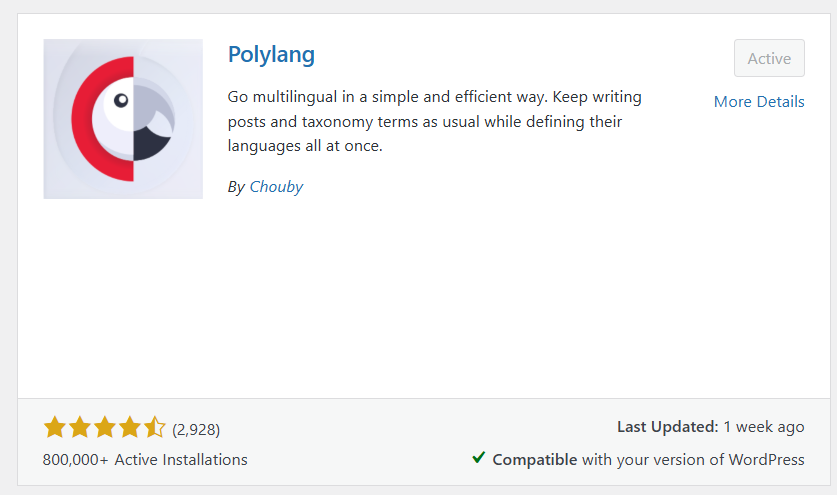
Scroll down a bit to find to PolyLang plugin. Click on the Install Now button, and then the Activate button. This screenshot shows what you should see after installation and activation.
When you install this plugin, it runs a wizard that allows you to select the languages that you want.
Once you have installed Polylang you will see a new Languages option on the WordPress dashboard.
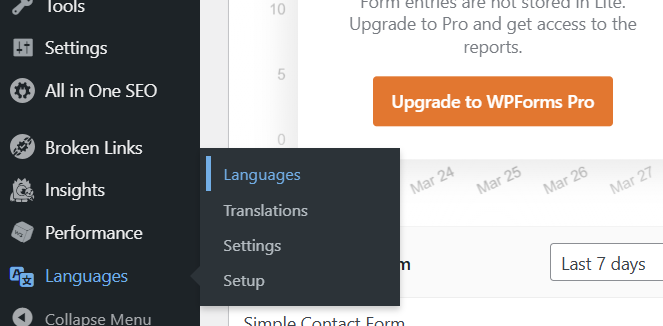
This gives you four options: Languages allows you to select the languages you want to switch between; Translations allows you to enter translations for some text items that appear on your site. Settings gives you some settings options. Setup allows you to re-run the setup wizard.
When installed, Polylang also creates a version of your home page in both languages.
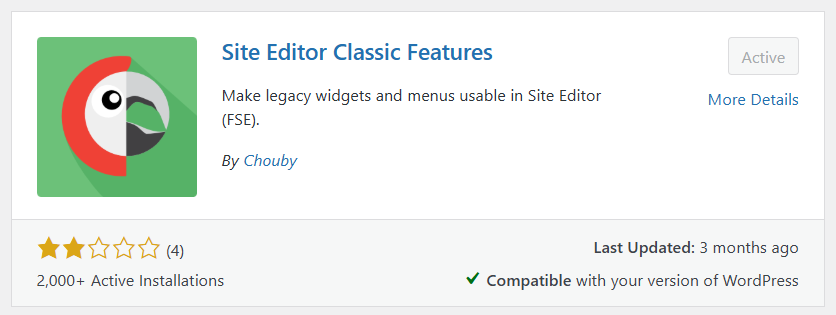
Polylang (the free version) works with some legacy features of WordPress. So, if your WordPress site is created using the latest block themes, to use the free Polylang, you will also need an additional plugin that adds support for some legacy features. This is provided by the makers of Polylang, and is called Site Editor Classic Features. So, install and activate this plugin the same way as you installed Polylang.
Create translated pages & posts
After you have installed and activated the plugins, and set up the languages that you want to have on your site, you will need to create translations of each of your pages.
From the WordPress dashboard, select Pages-All. This will bring up a screen with a table of all the pages on your site. There is a column on this list that shows whether there is a translation for each page. For the untranslated ones, there is a cross icon that you can click to create a page for the translated version of that page. Polylang will already have created a translated page for your home page, the others you need to create. Once you have a translation for the page, the cross icon changes to a pen icon, which will open the translated page.
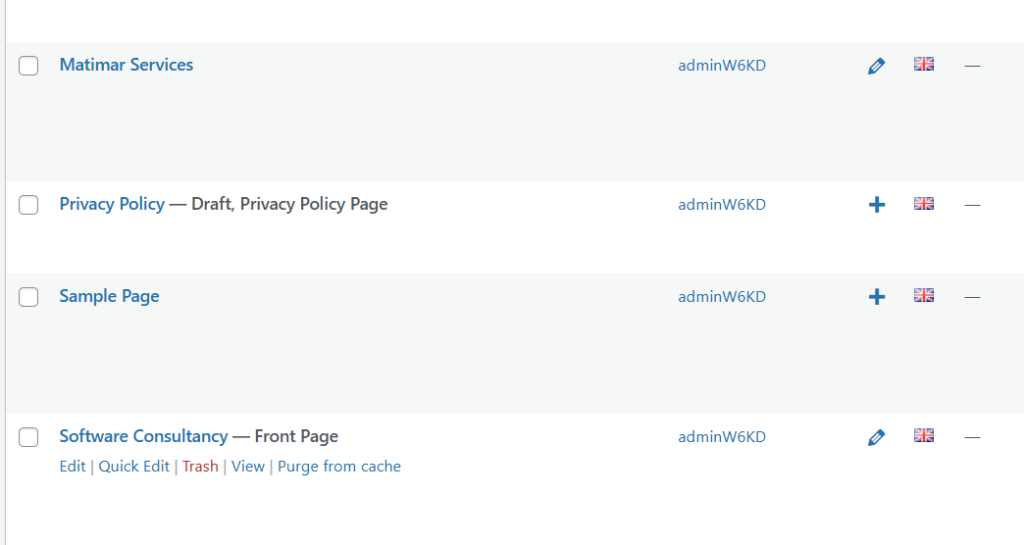
If you want to also translate blog posts, you will need to follow the same procedure, but selecting Posts instead of Pages.
Translate strings
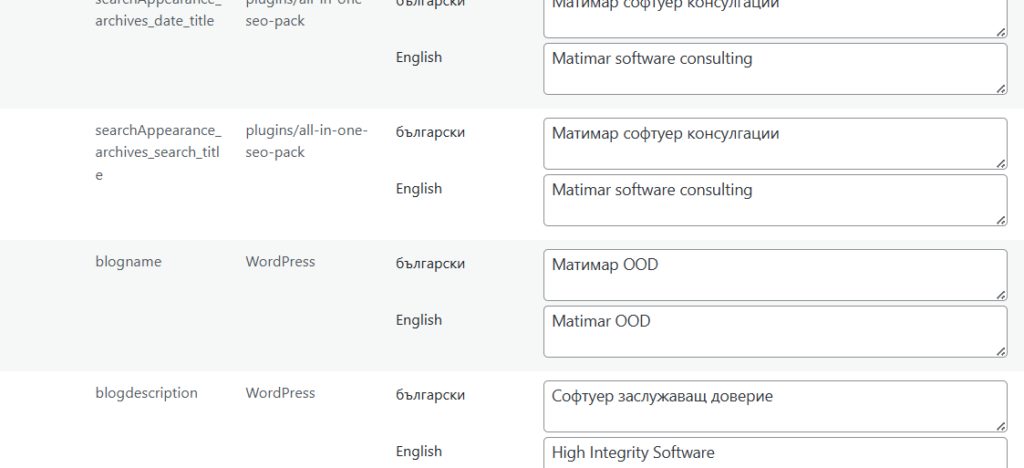
The web site uses some text strings that you will need to translate. For example the tag-line for the site.
From the WordPress dashboard, select Languages-Translations. This will bring up a screen where you can enter the translations for various text strings.
Change page header navigation menus
I found the most difficult part of setting up the web site to support a second language was working out how to set up navigation menus in different languages, with buttons for selecting the languages.
The free Polylang plugin works only with what are now legacy widgets for navigation menus. These also get their navigation information from a different place. So, we have to:
- Replace the navigation menu widget from our WordPress block theme with two equivalent legacy widgets, one for each language.
- Set up menus that the legacy navigation menu widgets will use, one menu for each language. The menus must also include the language switcher.
Creating the navigation menus
We want the navigation menus at the top of our web pages to be in different languages, according to the language of the page, and also to include the buttons for switching between languages. So, we need to create two navigation menus, one for each language, that include language switchers.
From the WordPress dashboard, select Appearance. The Site Editor Classic Features plugin will have added a new entry here called Menus. Select this and a screen to allow you to edit menus will be displayed.
To be able to add the language switcher, scroll to the top right of this screen and select Screen Options.
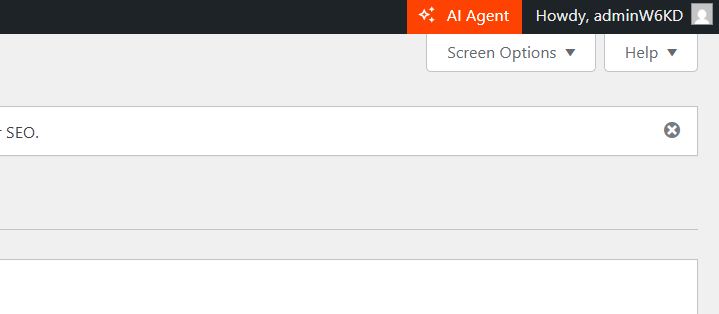
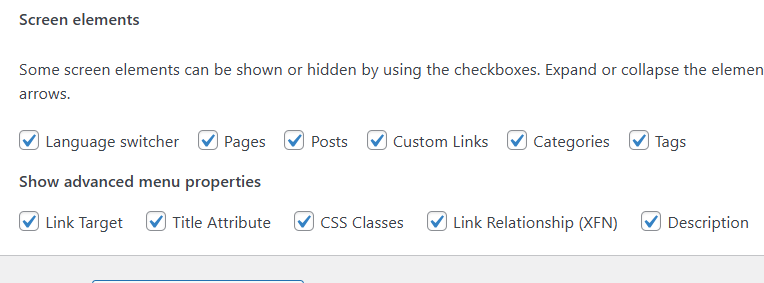
This will open a sub-screen with some options for what is visible on the screen. Select the language switcher option.
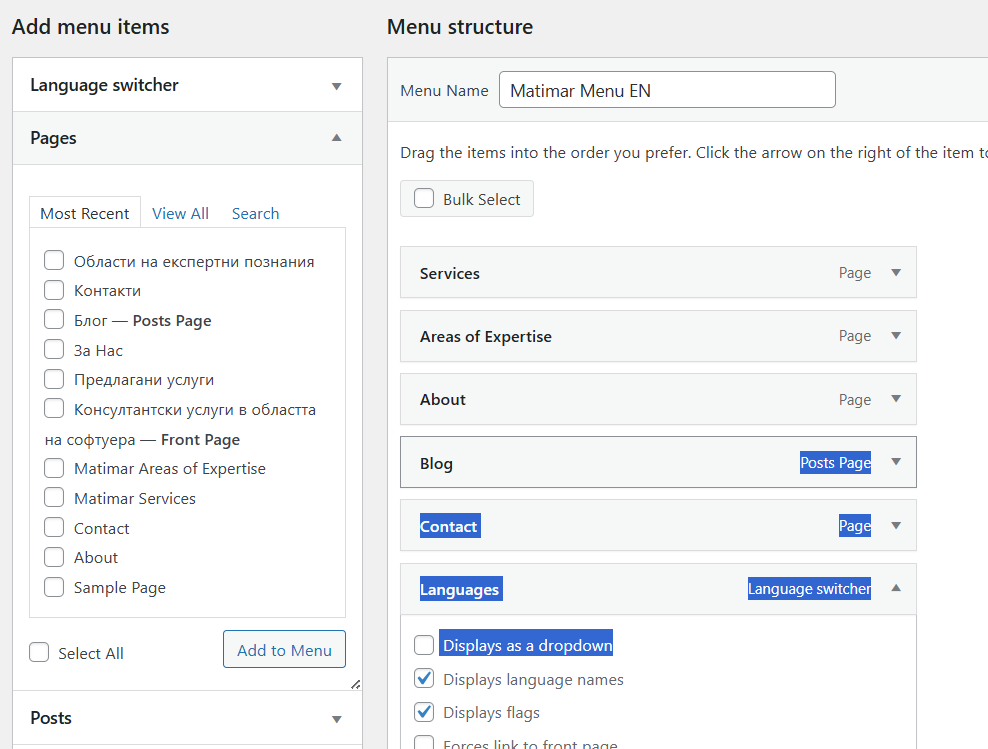
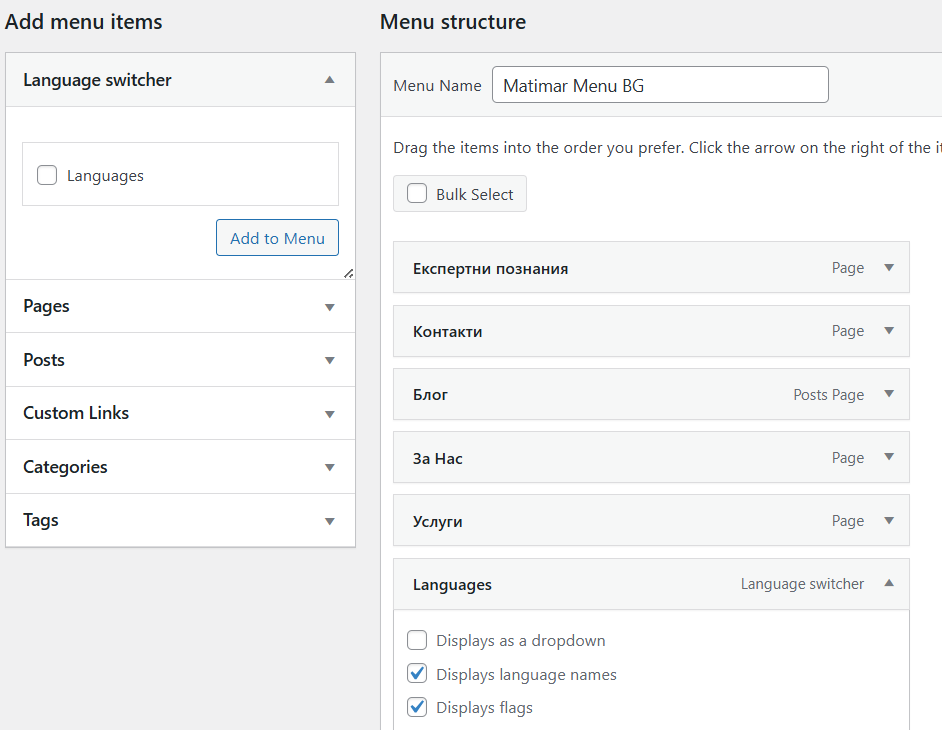
Now create two menus one in each language, linking to the pages in that language, and including a language switcher. The ones for our web site look like this.
Replacing the navigation menus
We will edit our header block to use a legacy navigation widget, instead of the default one. We will add one widget for each language.
From the WordPress dashboard, select Appearance-Editor.
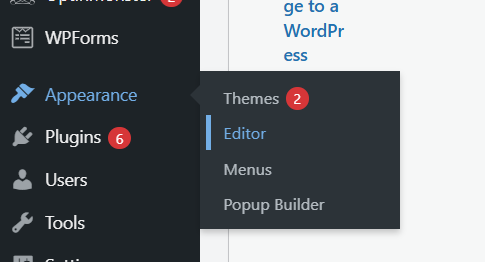
This opens a window that allows you to edit the blocks in your web pages.
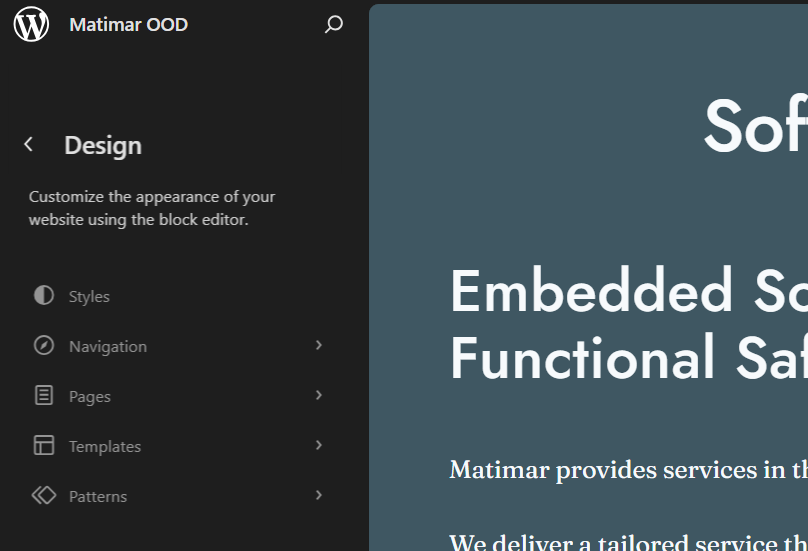
Select Patterns-Header so that you can edit your page header. Select the header that your site is using, and open it for editing.
In the page header, there is a navigation block. What you will do is to delete this navigation block, and replace it with two legacy navigation blocks, one for each language. The legacy navigation block provides the option of displaying the block only for a particular language, so although your header has two blocks only one is displayed at a time.
To delete the existing navigation block, select it and press the Del key (or select delete from the menu under the dots).
To add the legacy widget, select the header block and press the + button.
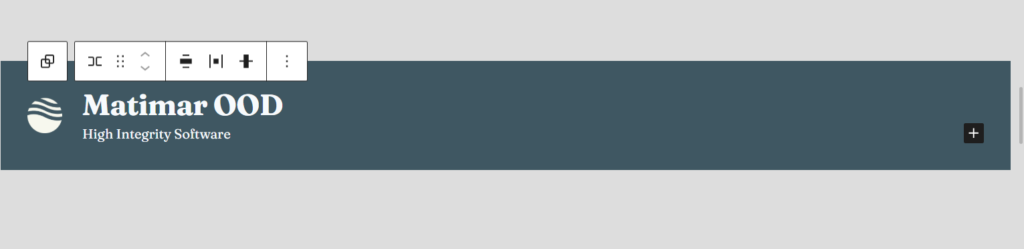
When the popup appears, search for Legacy Widget and select it. Then select Navigation Menu.
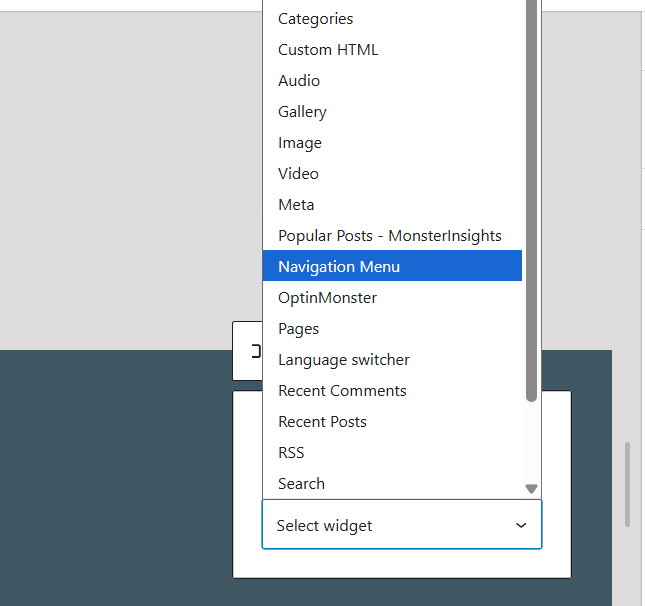
When you select Navigation Menu, a popup is displayed asking you to select the menu, and the language it is displayed for.
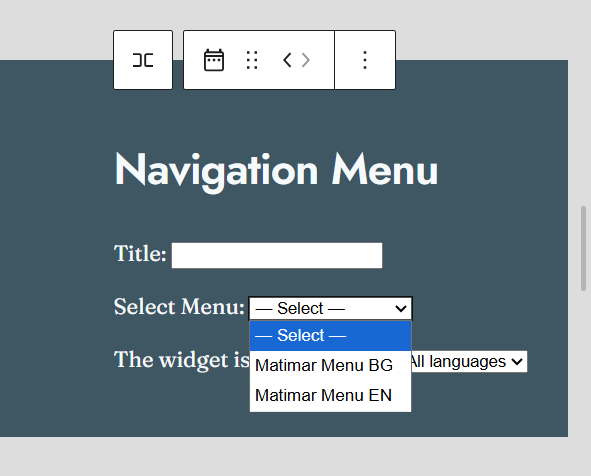
Select matching menu and language.
Then do the same for your other language.
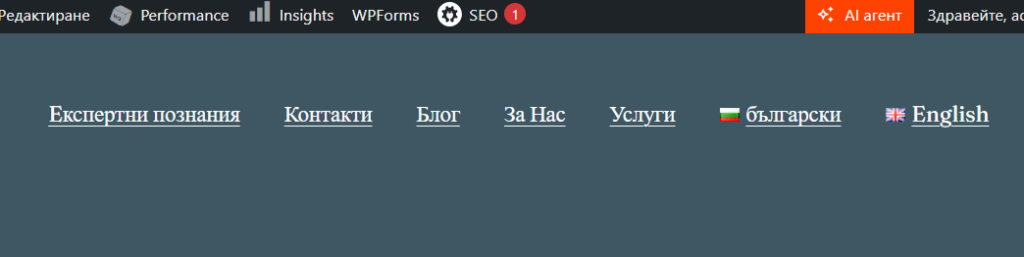
Save your changes, and you now should have headers with navigation in the appropriate language, and the option to switch between languages. Something like this.
Refresh permalinks
When I first installed the Polylang plugin, it had the unfortunate effect of making the site return a 404 page not found error when opening the Matimar site. This turned out to be due to a problem with sync of the permalinks, which Polylang modifies. So, it is best to re-save the permalinks after making changes involving Polylang.
From the WordPress dashboard, select Settings->Permalinks.
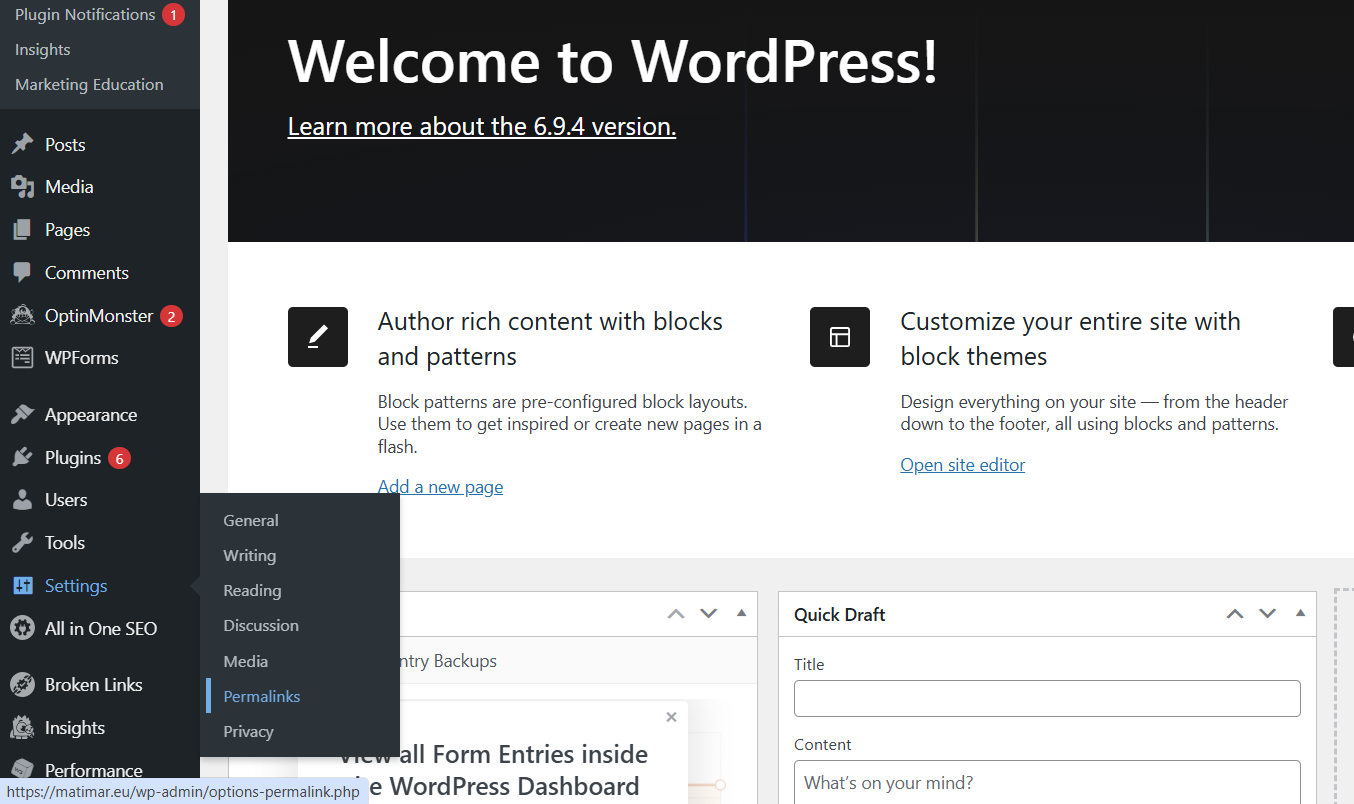
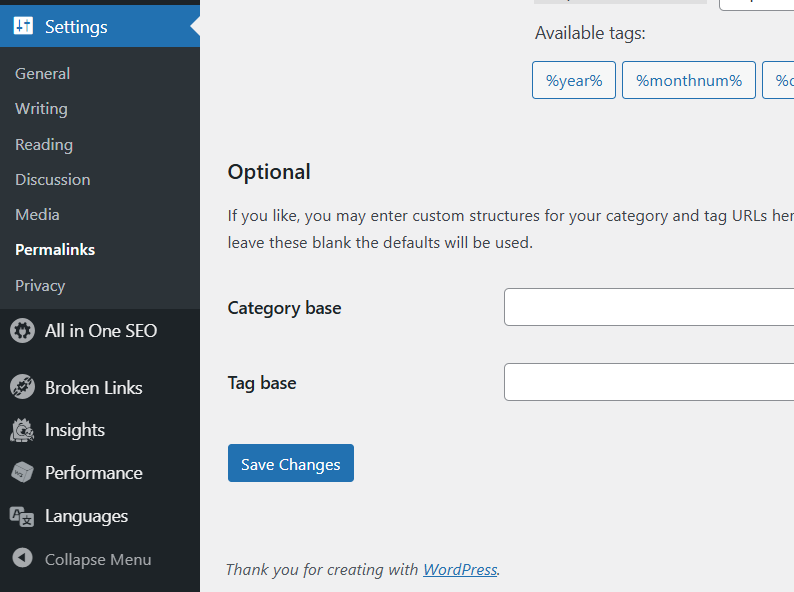
Scroll to the bottom of the Permalink Settings screen, and click on the Save Changes button.
Leave a Reply